
You do not necessarily need a dedicated dash cam to record the road ahead. With the right app, a stable car mount, continuous power, and careful camera positioning, your phone as a dash cam setup can handle everyday driving, road trips, rental cars, and more.
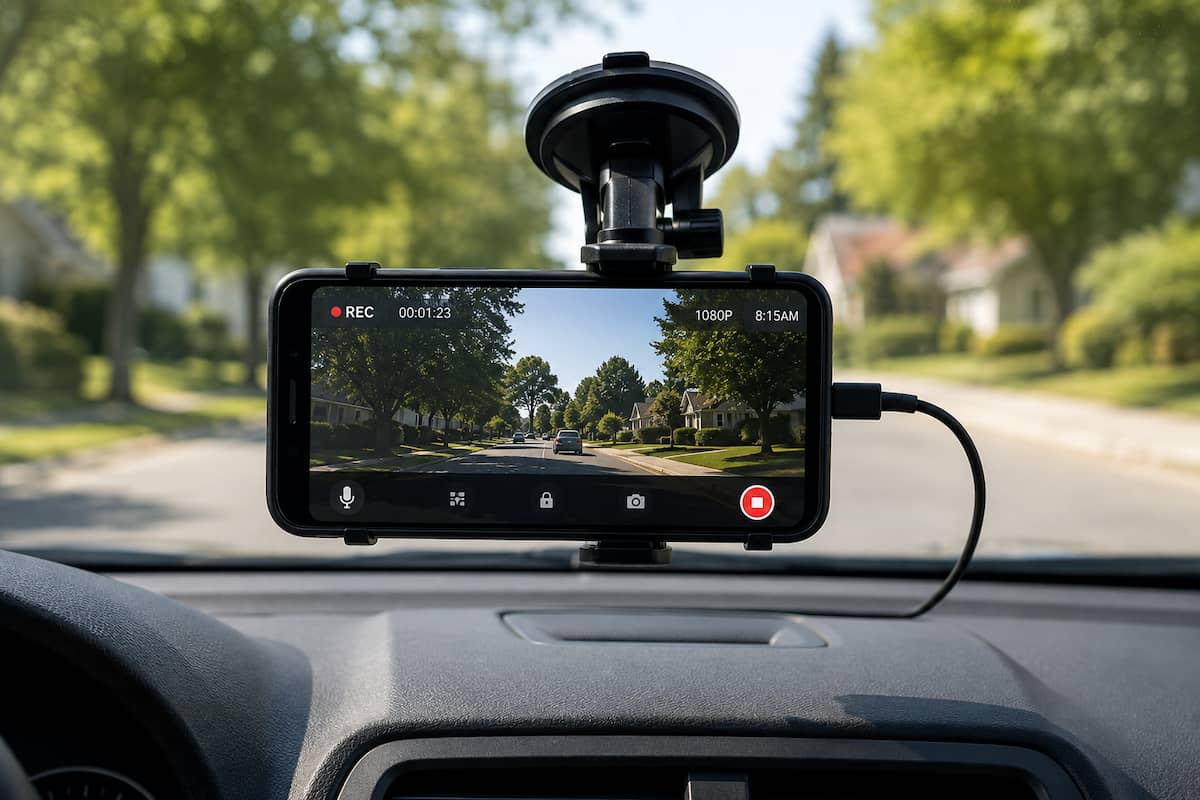
The setup is especially appealing if you have an older phone sitting in a drawer. Instead of buying another camera, that phone can become a dedicated recorder with GPS, a large screen, and enough storage for loop-recorded video. There are tradeoffs, though. Heat, battery use, mounting position, and automatic recording are all areas where a purpose-built dash cam has an advantage.
If you need a mount before setting up the camera, start with our guide to suction cup phone mounts. For dash-cam use, keeping the rear camera lens unobstructed and the phone steady is more important than having a long adjustable arm.
How to Use Your Phone as a Dash Cam
Whether you use phone as dash cam gear occasionally or every day, turning a phone into one is fairly simple. You need a dash-cam app with loop recording, a rigid phone mount that leaves the rear camera clear, and a reliable charging setup for longer drives.
A modern phone already contains most of the hardware needed for basic dash-cam duty: a high-resolution camera, GPS receiver, accelerometer, storage, display, and enough processing power to record video for long periods.
A dedicated dash-cam app adds features the normal camera app is missing. The most important is loop recording. Instead of filling the phone until recording stops, the app records video in short segments and deletes older unlocked clips when the allocated storage space is full.
Many apps can also add the time, GPS coordinates, vehicle speed, or location to recorded video. Some can protect a recording after a sudden impact so that it is not overwritten automatically.
The main question is not whether a phone can record the road. It can. The real question is whether using your phone as a dash cam is practical for the way you drive.
Phone as Dash Cam vs. Dedicated Dash Cam
Here is how a smartphone dash cam setup stacks up against dedicated hardware on the factors that matter most for daily driving.
| Feature | Phone Dashcam | Dedicated Dash Cam |
|---|---|---|
| Upfront cost | Excellent if you already own the phone | Requires separate hardware |
| Video quality | Can be very good | Varies by model |
| Automatic recording | Depends on the app and phone | Usually automatic |
| Heat tolerance | Major limitation | Designed for vehicle use |
| Parking mode | Limited | Available on many models |
| Storage | Phone storage or supported SD card | Usually removable memory card |
| Daily convenience | Fair with primary phone, better with spare phone | Excellent once installed |
A phone-based dashcam makes the most sense for occasional recording, rental cars, road trips, rideshare use, or repurposing an older device. If you want a recorder that starts every time you turn on the vehicle and stays installed year-round, a dedicated dash cam remains the better tool.
Using an Old Phone as Dash Cam
If you have an older iPhone, Galaxy, Pixel, or other Android phone that still has a good rear camera, using that old phone as a dash cam solves several problems at once.
You do not have to remove your everyday phone from the mount every time you leave the car. Incoming calls and notifications are less likely to interfere with recording, and you can configure the dash-cam app once and leave it alone.
A spare phone also lets you dedicate most of its free storage to video. You may not even need active cellular service. GPS can still work without a cellular plan, although maps and other online features may require Wi-Fi or downloaded data.
The Mount Matters as Much as the Dash Cam App
A normal car phone mount only needs to keep the screen visible. A phone used as a dash cam has a harder job. The rear camera needs a clear view through the windshield, the phone must stay steady over bumps, and no part of the holder can cover the camera lenses.
The best setup usually has four characteristics:
- The rear camera is completely clear.
- The mounting arm is short and rigid.
- The phone sits high enough to see over the dashboard.
- The mount does not obstruct the driver’s view.
Windshield Mounts
A windshield mount can provide one of the cleanest camera angles because the phone can be positioned high and close to the glass. Mounting near the rearview mirror usually keeps the camera pointed straight ahead without putting the phone directly in the driver’s central field of view.
A cradle mount can work well as long as the upper arms do not cross the phone’s camera cluster. Magnetic mounts are even easier in this respect because nothing wraps around the sides of the device.
Dashboard Mounts
A dashboard mount can also work if it sits close enough to the windshield and high enough for the rear camera to see the road instead of the hood.
The dashboard surface matters. Suction cups adhere best to smooth, nonporous surfaces. If yours is textured, see our guide on how to make a suction cup mount stick to a dashboard.
Vent Mounts
A vent mount is usually our third choice for dash-cam use because many vents position the phone too low. You may end up recording more dashboard than road.
There is one useful exception. A high center vent combined with an upward-positioned mount may put the phone at a usable camera height. An air vent can also help cool a phone during long recording sessions, although you should not rely on this as a cure for an overheating device.
Three Mounts That Work Well for Phone Dashcam Use
| Mount | Best For | Placement |
|---|---|---|
| iOttie Easy One Touch 6 | Universal cradle setup | Windshield or dashboard |
| OQTIQ Magnetic Suction Mount | Unobstructed rear camera | Dashboard or windshield |
| LISEN Magnetic Vent Mount | High-mounted vent setup | Air vent |
iOttie Easy One Touch 6: Best Universal Cradle Mount
The iOttie Easy One Touch 6 is a good starting point if you want one mount that works with both iPhone and Android devices. Its adjustable cradle holds the sides of the phone while the suction base can attach to either the windshield or a suitable dashboard surface.
For dash-cam duty, position the phone so the cradle arms remain below or beside the rear camera cluster. Keep the telescoping arm as short as practical because longer extensions tend to increase visible movement in recorded video.
OQTIQ Magnetic Suction Mount: Best for Camera Clearance
The OQTIQ uses magnetic attachment instead of a cradle, leaving the rear of a compatible phone open around the camera area. That makes it easier to position the phone without a clamp arm creeping into the video frame.
The suction base allows windshield or dashboard placement, while the adjustable arm lets you fine-tune the camera angle. As with any dash-cam installation, use the shortest arm position that gives the camera a clear view.
LISEN Magnetic Vent Mount: Best for a High Center Vent
The LISEN magnetic vent mount makes sense only when your vehicle’s vent location puts the phone high enough to see clearly through the windshield. Check this before buying because vent placement varies dramatically by vehicle.
A vent-based setup can have one secondary advantage during hot-weather recording: cool air from the climate-control system may help remove some heat from the phone. That does not make the phone heat-proof, and recording should stop if the device issues a temperature warning.
Heat Is the Biggest Problem When Using a Phone as a Dash Cam
This is the limitation many phone dashcam guides underestimate.
Recording video continuously generates heat. GPS adds more work. Keeping the phone plugged in adds charging heat. Then the entire device may be sitting behind a windshield in direct sunlight.
That combination can push a phone beyond its preferred operating temperature. When that happens, the phone may dim the display, reduce performance, slow or pause charging, close the camera app, or shut down until it cools.
For that reason, we would not leave a phone permanently mounted in a parked vehicle during hot weather.
How to Reduce Heat
- Keep the phone out of direct sunlight when possible.
- Do not leave it mounted in a parked hot vehicle.
- Remove a thick case if the phone begins running hot.
- Use a lower recording resolution if maximum quality is unnecessary.
- Turn the screen off or reduce brightness if the app supports background recording.
- Avoid running several demanding apps at the same time.
- If possible, position the phone where conditioned air reaches it.
- If the phone displays a temperature warning, stop recording and allow it to cool.
Best Dash Cam App for Android
Droid Dashcam: Best Current Android Choice
Droid Dashcam is our preferred Android starting point because it remains actively maintained and includes the functions that matter for in-car recording.
It supports continuous loop recording, background recording, timestamp and GPS overlays, speed information, impact-based video locking, and several automatic recording triggers. Recording can be configured to start when charging begins, when the phone connects to a selected Bluetooth device, when the app launches, or under other supported conditions.
There are limitations. The app does not provide electronic image stabilization, and its current documentation says simultaneous multiple-camera recording is not supported. The developer also warns that continuous recording uses significant battery power and can make the phone hot.
DailyRoads Voyager: Another Android Option
DailyRoads Voyager has been available for many years and still covers the basic dash-cam functions. It supports continuous video recording, user-controlled video quality and clip length, cyclic storage management, and the ability to retain important recordings.
We would consider it mainly for an older Android phone where you want a simple recorder. Droid Dashcam is the more current choice if active development matters to you.
Best Dash Cam App for iPhone
Smart Dash Cam
Smart Dash Cam from IPCamSoft remains available for current iPhones and has continued receiving updates. It is designed to give an iPhone many of the basic recording functions associated with a dedicated dash cam rather than forcing you to rely on the standard Camera app.
If you are searching for an iPhone dash cam app, this is the type of app you want: loop-style recording and driving-focused controls rather than a standard video recorder.
As with Android, the app is only one part of the setup. iPhone users still need to pay close attention to charging and heat. Continuous camera use behind a sunny windshield can push an iPhone into thermal protection even when the app itself is functioning correctly.
How to Set Up Your Phone as a Dash Cam
Step 1: Install and Configure the App
Choose your dash-cam app and set a reasonable amount of storage for loop recording. Start with 1080p rather than automatically selecting the highest resolution available. Higher resolutions create larger files and may generate more heat.
Step 2: Mount the Phone
Position the phone high enough that the rear camera sees the road clearly. Make sure no clamp arm, magnet adapter, dashboard edge, or part of the vehicle appears directly in front of the camera.
Step 3: Connect Power
Continuous video recording drains a battery quickly, so long trips normally require external power. Route the cable so it does not cross steering, shifter, or other controls.
Step 4: Adjust the Camera Angle
Aim far enough forward to capture traffic, lane markings, intersections, and the horizon. Avoid pointing the phone so low that half the video is hood or dashboard, or so high that most of the image is sky.
Step 5: Record a Test Drive
Do not trust the live preview alone. Drive for several minutes, review the footage, and look for vibration, glare, reflections, blocked corners, and excessive dashboard in the frame.
Step 6: Test Loop Recording
Confirm that old unprotected clips are removed once the storage allocation fills. Also learn how your chosen app locks or protects an important recording so that you know what to do after an incident.
Phone Dashcam FAQ
Can I use my phone as a dash cam?
Yes. A phone can work as a dash cam when paired with a dash-cam app, stable mount, reliable power source, and enough storage for loop recording.
Can I use an old phone as a dash cam without cellular service?
Yes. Video recording does not require cellular service, and GPS functionality can still work without an active cellular plan. Features that require internet access may need Wi-Fi or another data connection.
How much storage does a phone dash cam need?
It depends on recording resolution, bitrate, clip length, and the app. You do not need enough storage for every drive because loop recording continuously replaces older unlocked footage. Allocate enough space to preserve a useful recent driving window without consuming the entire phone.
Can a phone dash cam record while the screen is off?
Some apps support background recording or screen-off operation. The exact behavior depends on the app, phone, operating system, and permissions.
Is a phone better than a real dash cam?
It depends on the job. A phone can offer excellent video and costs very little if you already own one. A dedicated dash cam is usually better for permanent installation, automatic operation, parking recording, and long-term exposure to an automotive environment.
Bottom Line
Using your phone as a dash cam is a practical way to add road recording without immediately buying another device. The idea works especially well with an older phone that can remain dedicated to recording.
The key is building the complete setup rather than concentrating only on the app. Use a rigid mount, keep the rear camera unobstructed, position the phone high enough to see the road, provide reliable power, enable loop recording, and test the setup before depending on it.
Most importantly, watch the phone’s temperature. Continuous video, GPS, charging, and direct sun create one of the harshest workloads a smartphone experiences. If your intended setup will remain installed every day or operate for hours in extreme temperatures, a dedicated dash cam is the better long-term choice.